

Storage
Everything your team stores in Rogue Architect counts toward one storage limit. The Storage page shows where that space goes and lets you free some up. Open it from Storage in the Rogue Architect home sidebar. It replaced the Build Management page, and old Build Management links open its Architect Storage tab.
The page has three tabs: Overview, Architect Storage, and Media Storage.
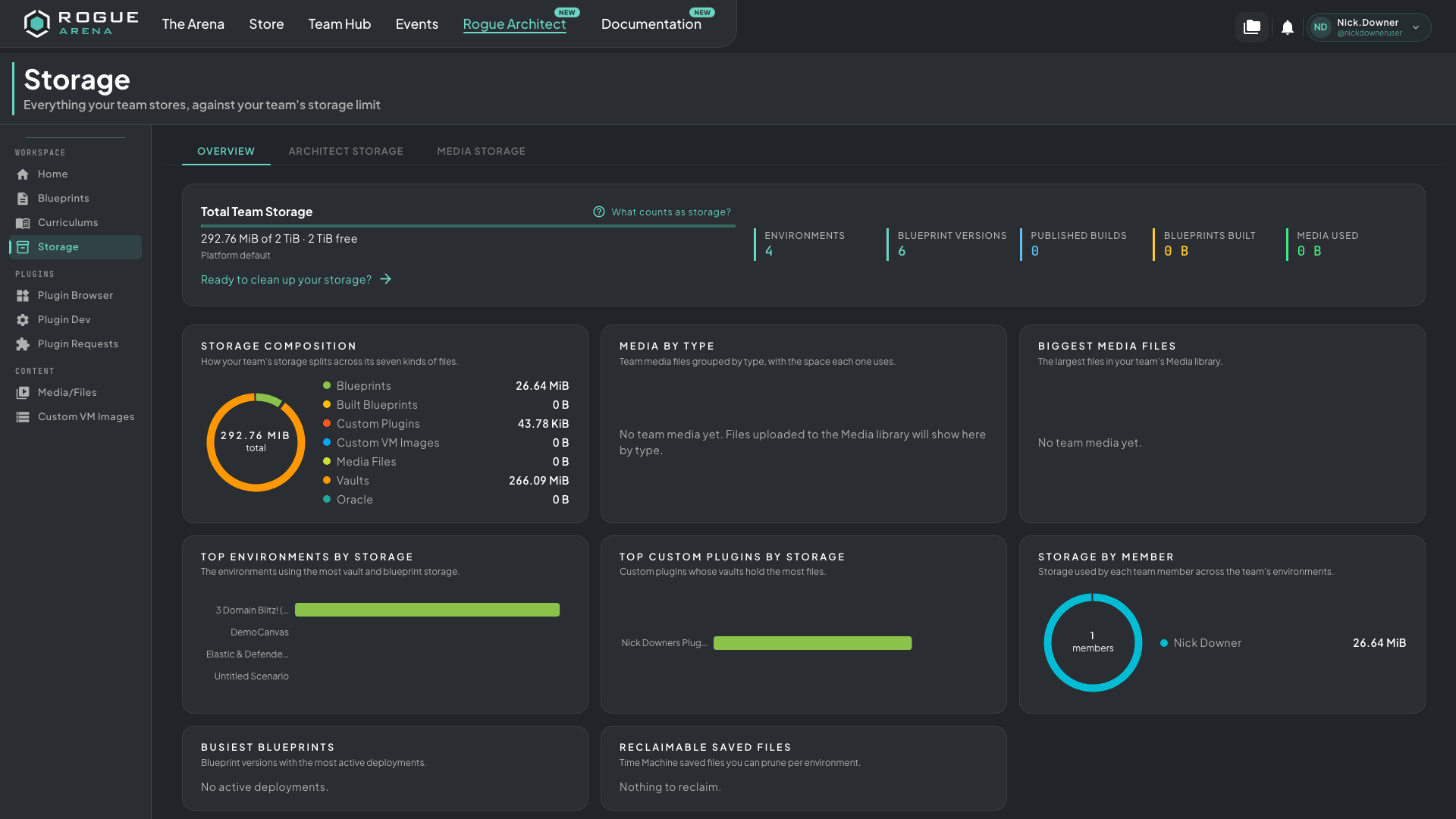 The Overview tab. The meter at the top shows how much of the team’s limit is used and how much is free.
Your Storage Limit
Section titled “Your Storage Limit”- A team shares 2 TiB.
- An account that isn’t on a team gets 250 GiB.
- Rogue Arena staff can set a different limit. The meter says Set by staff or Platform default.
The meter counts uploads that are still in progress. Deployment disks, VM snapshots, and files you send directly into running VMs don’t count. Click What counts as storage? under the meter for the seven categories:
| Category | What it holds |
|---|---|
| Blueprints | Files in your blueprint machine vaults and plugin parameters, plus Time Machine saved files |
| Built Blueprints | The built VM images your blueprints deploy from |
| Custom Plugins | Vault files bundled with your team’s custom plugins |
| Custom VM Images | Machine images (OVF/OVA) your team uploaded |
| Media Files | Videos, images, and documents in the team Media library |
| Vaults | Your team vault plus every member’s personal vault |
| Oracle | Oracle workspaces and files attached in Architect chats |
Cloning a blueprint within your team adds no storage for files that haven’t changed, and reusing a plugin across machines or blueprints doesn’t count its vault files again.
When Storage Is Full
Section titled “When Storage Is Full”The meter warns at 80% and again when storage is almost full. At the limit, new uploads and new builds are refused with “Your team’s storage is full.” Launch Build shows Storage is full with a Manage storage button that opens this page.
Free up space with the tabs below. If you can’t remove something yourself, the page names your team’s Lab Admins to ask. To raise the limit, ask Rogue Arena staff.
Overview
Section titled “Overview”The Overview tab summarizes your storage: counts of environments, blueprint versions, and published builds, plus how much space built blueprints and media use. Cards break it down further:
- Storage composition: how the total splits across the seven categories
- Top environments by storage and Top custom plugins by storage
- Biggest media files and Media by type
- Storage by member, for teams
- Busiest blueprints: blueprint versions with the most active deployments
- Reclaimable saved files: Time Machine saved files you can prune, by environment
- Active Deployments, for Lab Admins: what the team is running right now
Click Ready to clean up your storage? under the meter to jump to Architect Storage.
Architect Storage
Section titled “Architect Storage”The Architect Storage tab lists every environment with its owner, total size, active user deployments, and status. Search by name or owner, or filter by status. Expand an environment to see each blueprint version and its build. On a team, the Click here for a how-to. link at the top opens a diagram of how environments, blueprints, backups, and builds fit together.
Each blueprint version has three removal buttons, from lightest to heaviest:
- Remove Backups removes saved files from the environment’s restorable Time Machine checkpoints across all of its versions. Your current blueprint stays as it is, and the checkpoints keep their layouts and settings.
- Remove Lab Build permanently removes the build’s VM images. These usually use the most storage. The blueprint stays and can be built again. If anyone still has the build deployed, expand Active User Deployments and remove their deployments first.
- Remove Blueprint deletes that blueprint version and its backups. Remove its Lab Build first.
You can remove builds on your own environments. Lab Admins can also remove teammates’ builds. Only the blueprint’s owner or Rogue Arena staff can remove a blueprint.
Media Storage
Section titled “Media Storage”The Media Storage tab lists your team’s media files with their folder, size, uploader, upload date, and where they’re used. To delete a file for good, click the remove icon on its row and confirm. Only the uploader or a Lab Admin can remove a file. A file that a curriculum uses can’t be removed until you take it out of every place listed under Uses.
Media is a team feature. If you aren’t on a team, the tab asks you to join an organization first.