

Building with Oracle
Rogue Oracle can build a lab for you in Rogue Architect. Describe what you want, answer a few questions, and Oracle lays out the VLANs, places the machines, and attaches plugins on the canvas. It can also launch a test build, fix what fails, and get the Blueprint ready to templatize. Anything that creates a Blueprint or starts a build waits for your approval.
Before You Start
Section titled “Before You Start”- AI credits. Oracle spends AI credits from your wallet. See Billing and AI Wallet. If you have no AI credits, or Oracle isn’t available to your account, the create button reads New Blueprint and opens a blank canvas instead.
- Oracle’s terms. The first time you use Oracle, it asks you to read and accept its terms. See Privacy for how your conversations are handled.
Designing on the canvas is free. A test build runs on real VMs and uses VM hours.
Starting a New Lab
Section titled “Starting a New Lab”- Open Rogue Architect → Blueprints and click Build with Oracle in the top-right. The Create a new lab or course banner above your blueprints has the same button, and Rogue Architect Home shows the same banner.
- Rogue Architect creates an untitled canvas and opens Oracle’s start prompt: What will you build in Untitled Scenario?
- Describe the lab, or click one of the examples under the box to fill it in.
- Click Start building. The Oracle panel opens on the canvas and Oracle starts working.
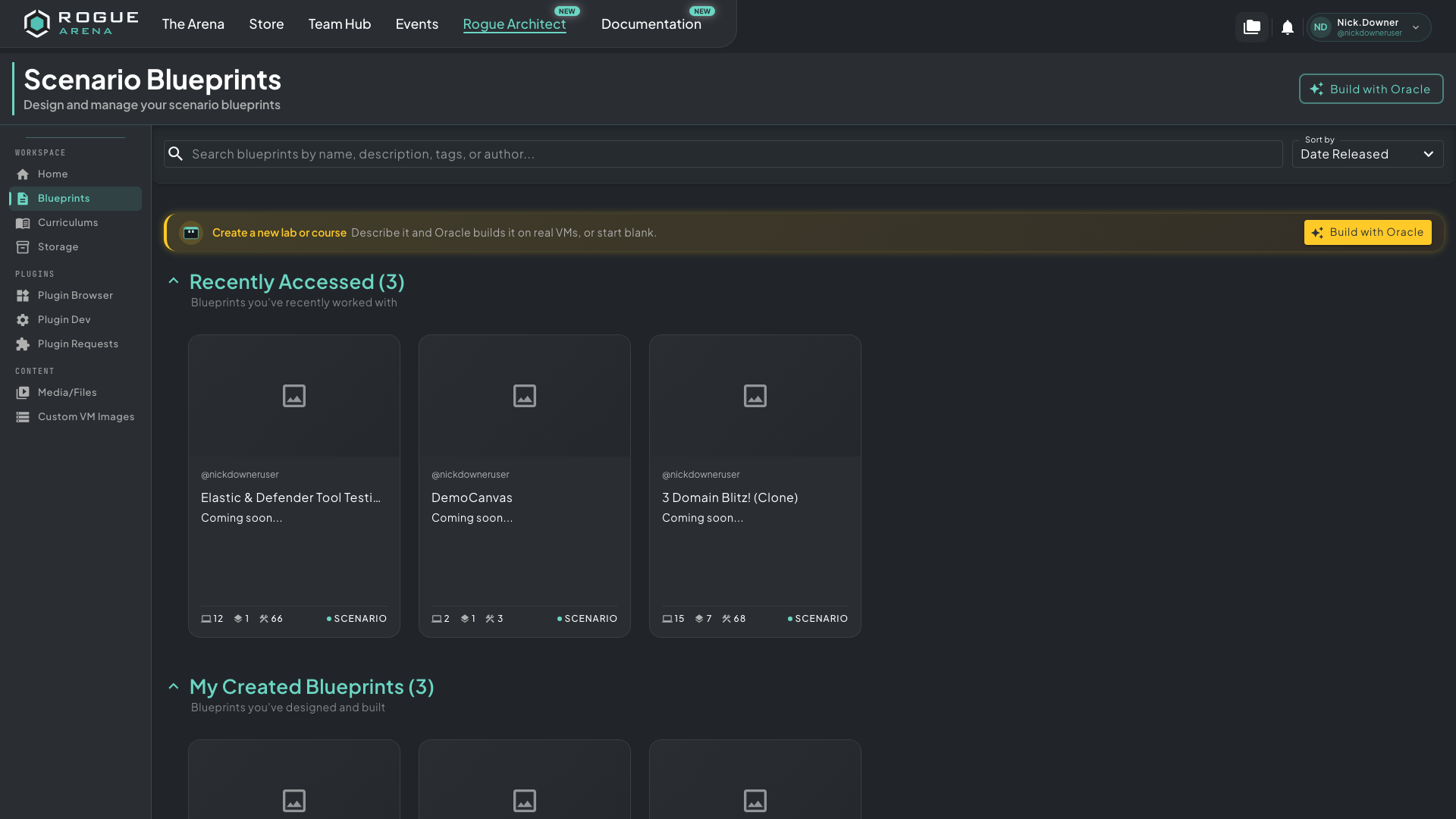 Build with Oracle sits in the top-right of the Blueprints page and in the gold banner above your blueprints.
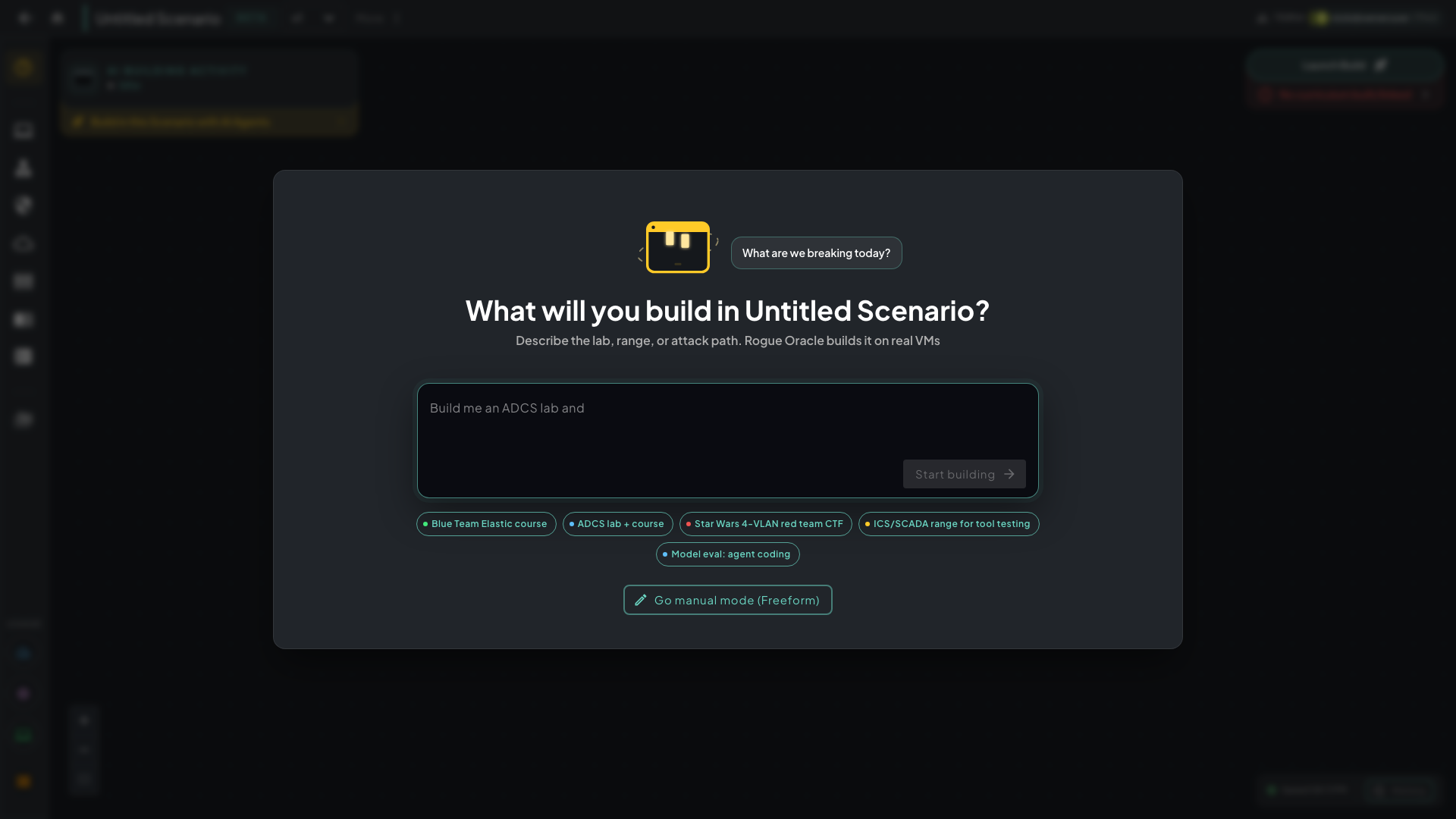 The start prompt. Describe the lab, or click Go manual mode (Freeform) to build it yourself.
To lay out the lab yourself, click Go manual mode (Freeform). Rogue Architect remembers that choice for this canvas in your browser. While the canvas is still empty, click Build in this Scenario with AI Agents at the bottom of the AI Building Activity card to bring the start prompt back.
Working with Oracle on the Canvas
Section titled “Working with Oracle on the Canvas”Oracle lives in the AI Building Activity card that floats over the top-left of the canvas. Click the card’s header to open the conversation. The card pulses while Oracle, or any agent you’ve connected, is working, and its status line shows what’s running.
Oracle usually starts with a few questions on cards. Pick an answer, or choose Something else and type your own. It then walks you through the design in stages, and each stage ends with a short question such as whether to change anything before moving on. Reply in your own words. If you’d rather Oracle decide the rest, tell it so (“you decide”, “just build it”).
Oracle drafts its canvas changes and applies them once the plan is complete. You can also open Oracle on any Blueprint you can edit and ask for a change, such as “Add a DMZ VLAN with a vulnerable IIS server.”
To stop Oracle mid-run, click the red stop button in the message box.
Approving Oracle’s Requests
Section titled “Approving Oracle’s Requests”Oracle asks before it creates a Blueprint or starts a build. The request appears as a card in place of the message box, and Oracle waits until you decide.
Needs your review appears when Oracle wants to create a new Blueprint, save a new version, or copy a Blueprint or its curriculum. The card says what it will do and what the new Blueprint will be called.
- Click Approve to let it go ahead. Your approval covers only that one request.
- Click Cancel to refuse it.
- Click Cancel with note to refuse it and tell Oracle what to do instead.
Needs your approval appears when Oracle wants to build or redeploy the Blueprint. The card shows the build settings in one line.
- Click Approve this build to start it, or Cancel.
- A redeploy can restart or replace machines that are already running. The card warns you when that applies.
- If your deployment slots are full, the card lets you pick a deployment to remove. If you’re out of VM hours, it offers See ways to get VM hours.
Letting Oracle Fix a Build
Section titled “Letting Oracle Fix a Build”When you launch a build yourself, the Configure step of Launch Build has an Oracle auto triage, bugfix, and redeploy toggle. It’s off by default and uses AI credits from your wallet.
With it on, Oracle watches the build. If a play fails, Oracle works out why, fixes the plugin settings, and relaunches until the build completes. It then tests what was built from end to end and fixes what doesn’t work, so the canvas is ready to templatize. After launch, click Open the conversation in Oracle to follow along.
The toggle is greyed out when you have no AI credits, when Oracle isn’t available on this canvas, or until you’ve accepted Oracle’s terms.
When Someone Else’s Oracle Is on Your Blueprint
Section titled “When Someone Else’s Oracle Is on Your Blueprint”If another user’s Oracle is editing a Blueprint you own, your Oracle panel says so and names them. Click Stop Oracle to stop it and keep its draft, or Stop and discard draft to stop it and throw its changes away. If their Oracle has finished but left a draft behind, click Discard draft to clear it.
Setting Oracle Help for Learners
Section titled “Setting Oracle Help for Learners”Oracle also helps learners inside labs deployed from your scenario. In the canvas header, open More → Edit Scenario Info and set Oracle help:
| Setting | What learners get |
|---|---|
| Full help | Oracle can act in the lab for the learner: run commands, click in VMs, write code, and show the results. This is the default. |
| Coach only | Oracle explains and points the way. It never does graded steps, answers questions, or finds flags for the learner. |
| Off | Oracle isn’t available in the lab. Agents connected through MCP still work. |
See Rogue Oracle for what Oracle does inside a running lab.
Using Your Own Agent
Section titled “Using Your Own Agent”You can do the same work with an AI coding agent on your own machine through the Rogue Arena MCP plugin. See Agent MCP - Lab Building.