

Snapshot Management
Snapshots capture the complete state of a VM at a point in time — disk, memory, and running processes. Take one before a risky operation, revert if something goes wrong, and get back to a clean state in seconds without redeploying. Rogue Arena gives you full control to create, revert, delete, and manage snapshots on a per-VM basis, directly from the platform.
Taking a Snapshot
Section titled “Taking a Snapshot”Open the VM dock at the bottom of the screen and click View All Scenario VMs. Hover over the target machine row — a set of action icons appears on the right side of the row. Click the camera icon to open the Snapshots panel for that VM.
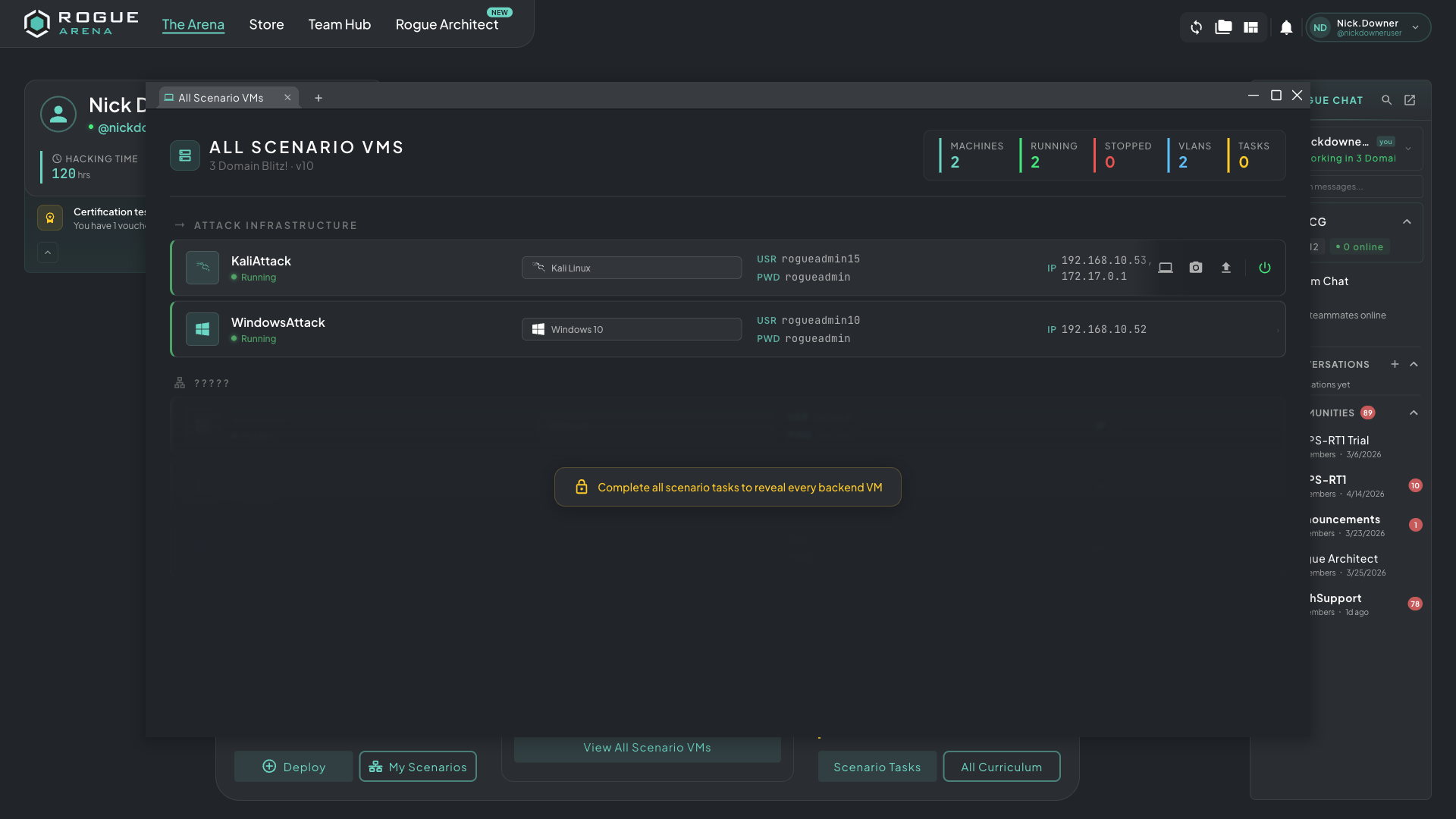 All Scenario VMs panel — hover any row to reveal the action icons on the right; the camera icon opens that machine’s snapshots.
The Snapshots panel lists all existing snapshots for the machine. The snapshot you’re currently on is marked YOU ARE HERE. Click + Create Snapshot in the bottom right to name and save the current state.
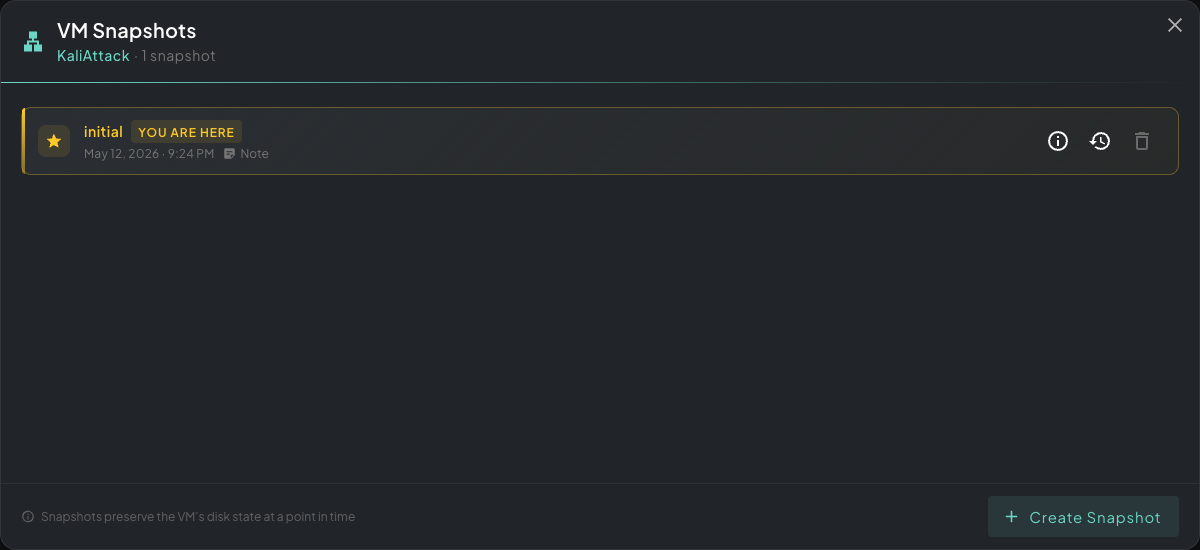 VM Snapshots panel — your current state is marked “YOU ARE HERE”; click + Create Snapshot to save a new one.
Give the snapshot a name that describes the current state — then click Create Snapshot to save it. An optional note field lets you add context.
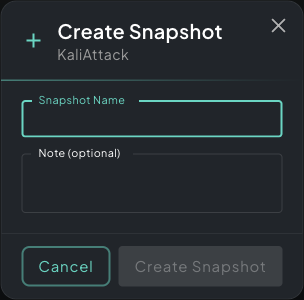 Create Snapshot dialog — name the snapshot and add an optional note describing the state.
Snapshots complete in under a minute for most machines.
Reverting to a Snapshot
Section titled “Reverting to a Snapshot”Open the Snapshots panel for the machine (hover the VM row → camera icon). Find the snapshot you want to restore and click the revert icon (clock arrow). Confirm — the machine rolls back to that exact state and restarts automatically.
Everything that happened after the snapshot was taken — files created, configuration changed, processes started — is gone.
Managing Snapshots
Section titled “Managing Snapshots”You can keep multiple snapshots per machine. Delete ones you no longer need to free up storage. There’s no hard limit on the number of snapshots per machine, but keeping a tidy set (baseline, pre-step, post-step) makes it easier to navigate.
Good Practices
Section titled “Good Practices”- Take a snapshot before anything destructive — privilege escalation attempts, service restarts, registry edits, anything that could break the environment
- Name snapshots clearly — “snapshot 1” is useless when you’re trying to find a clean baseline three hours into a session
- Don’t rely on snapshots as permanent backups — snapshots are tied to the deployment; if the deployment is deleted, snapshots go with it