

Invite Guests
Every lab in Rogue Arena is isolated per user by default — your deployment is yours, with your own state, your own snapshots, and your own curriculum progress. When you want company, you can invite guests in.
When to Invite Guests
Section titled “When to Invite Guests”- Team red-team CTFs — run a mock red-team operation against one shared scenario, with each operator working from their own machines. Like running Cobalt Strike together, but with the whole range stood up around you.
- Pair work and over-the-shoulder help — pair-debug a tricky exploit, or have a teammate live-watch your session
- Instructor support — let an instructor see what’s happening in your lab and step in when you’re stuck
- Demos and walkthroughs — show colleagues your work without handing over your environment
Opening the Share Dialog
Section titled “Opening the Share Dialog”From your deployed scenario, click the Share icon in the deployment toolbar to open Manage Scenario Sharing.
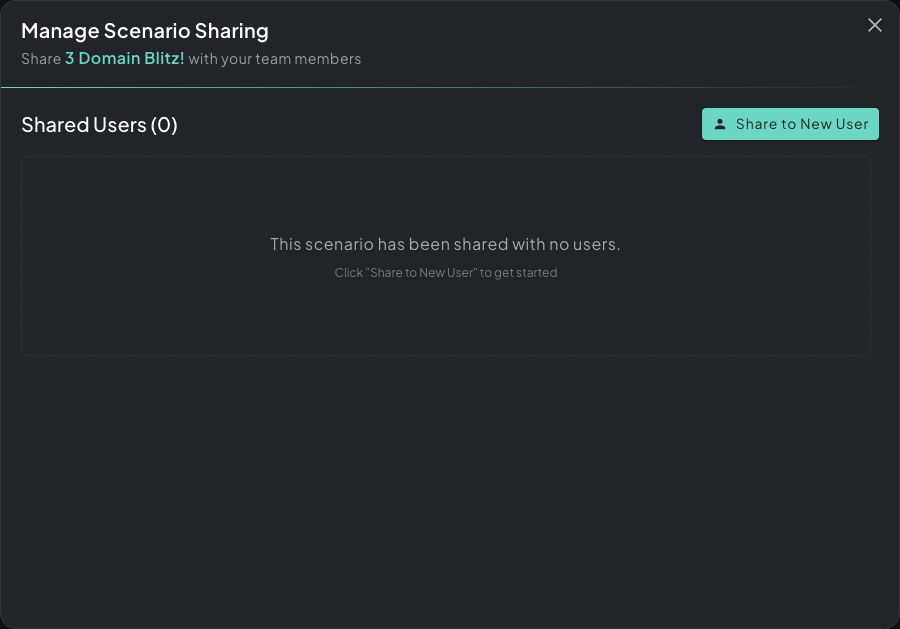 Manage Scenario Sharing — the empty state lists everyone you’ve already shared with; click Share to New User to add someone.
Inviting a User
Section titled “Inviting a User”Click Share to New User and the Share Scenario with User form opens. Pick a teammate from the autofill list on the right, or type a username manually on the left. Then choose what level of access the guest should have.
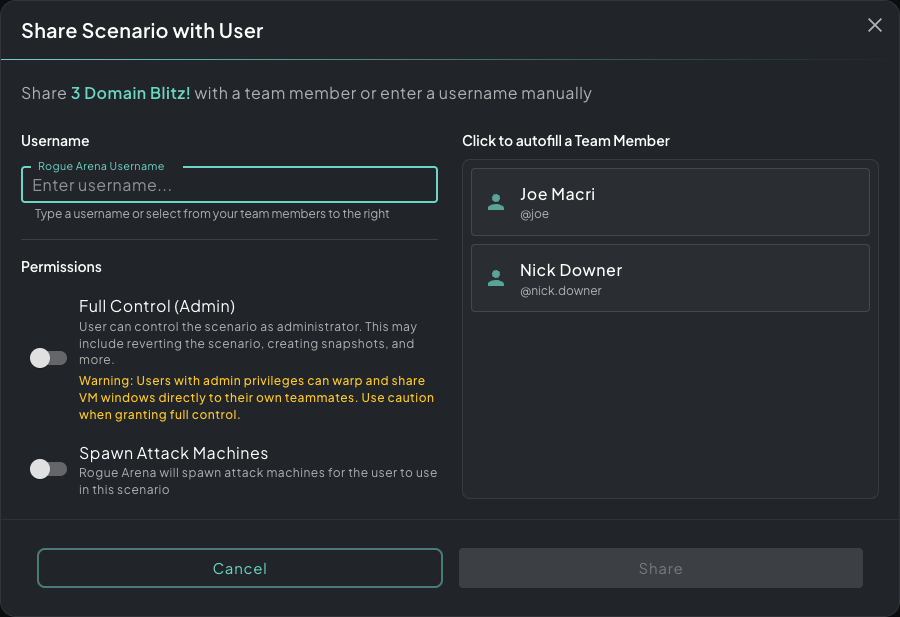 Share Scenario with User — autofill from your team on the right, or type a username on the left, then toggle permissions and Share.
Permissions
Section titled “Permissions”Two permission toggles control what the guest can do:
- Full Control (Admin) — the guest can drive the scenario as an administrator. They can revert the scenario, take and revert snapshots, generate VPN configs, and use the full toolkit. Caution: users with admin privileges can warp and share VM windows directly to their own teammates outside your invite list — only grant this to people you trust to extend access further.
- Spawn User-Controllable VMs — Rogue Arena clones every VM the scenario author marked User Controllable and gives that guest their own copy to work in. Use this whenever each guest needs their own machines to drive — for example team red-team work where every operator wants their own Kali/Windows box inside the same deployment.
Leave both off and the guest gets view-only access — they can see what’s happening in the lab but cannot send input to VMs or affect state.
- Curriculum progress depends on the scenario settings. By default it’s tracked per user — your guest’s answers don’t advance your progress and vice versa. If the scenario author enabled Team Collaboration Unlock, chapter unlocks are shared across everyone in the deployment so the team progresses together.
- Guests don’t consume an additional deployment slot in your subscription
- Open Manage Scenario Sharing again at any time to revoke a guest — their access ends immediately
- Multiple guests can share the same VM at once; see Operating a VM → Simultaneous viewing & control for the multi-operator details