

File Upload & Download
Every VM in your deployment has a file transfer interface — drag files in, drag files out, no SCP or shared folders required. File transfers are handled by the Rogue Arena agent running on each host, meaning they work even when a VM has zero external network connectivity. Multi-gigabyte uploads and downloads transfer flawlessly regardless of the VM’s network isolation.
File Vaults
Section titled “File Vaults”Every Rogue Arena user has access to two persistent storage vaults that live outside any individual deployment — they persist across scenarios, reboots, and teardowns.
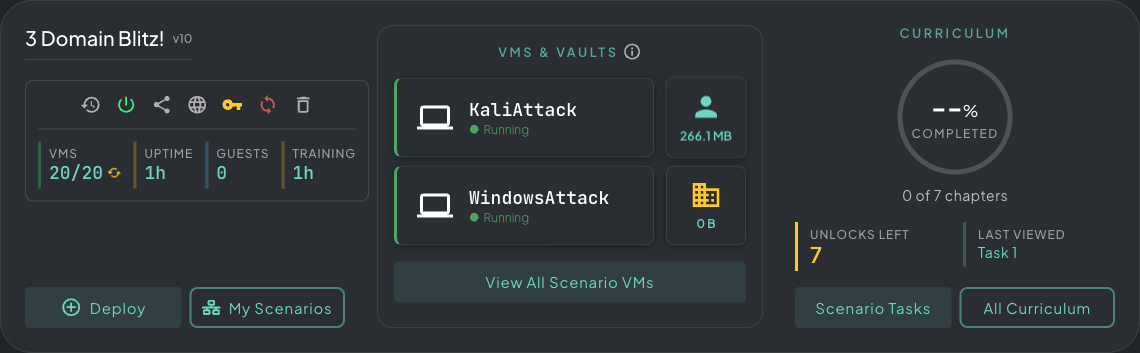 VMs & Vaults dock — your Personal and Team vaults sit alongside the scenario machines, with live storage indicators.
Click either vault from the VMs & Vaults dock to open the File Browser.
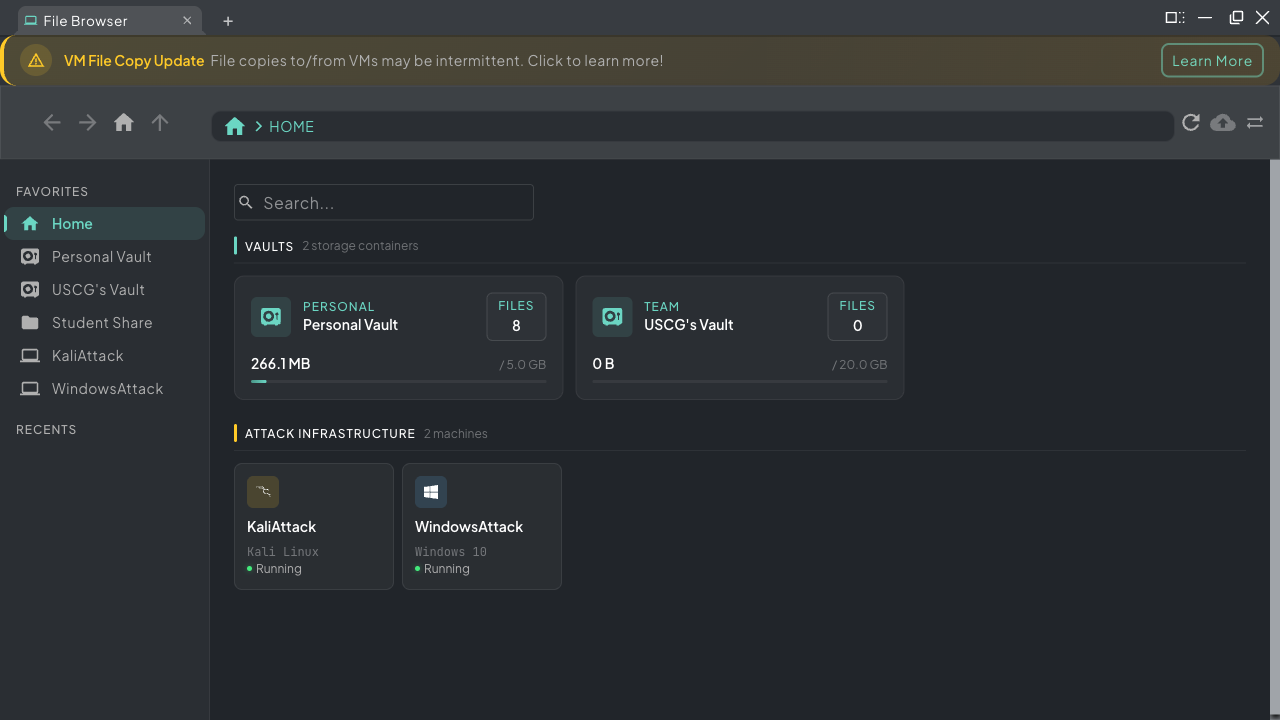 File Browser — switch between Personal Vault, Team Vault, and any VM in your active scenario from the sidebar.
- Personal Vault — 5 GB of private storage, visible only to you. Use it to stash tools, payloads, wordlists, or any files you want available across every scenario you run.
- Team Vault — 20 GB of shared team storage. Files dropped here are accessible to everyone on your team, making it easy to share toolkits, loot, or resources mid-operation.
Both vaults support folders for organization. The File Browser gives you access to every VM in your active scenario alongside your vaults — select any machine from the sidebar to browse its full filesystem directly.
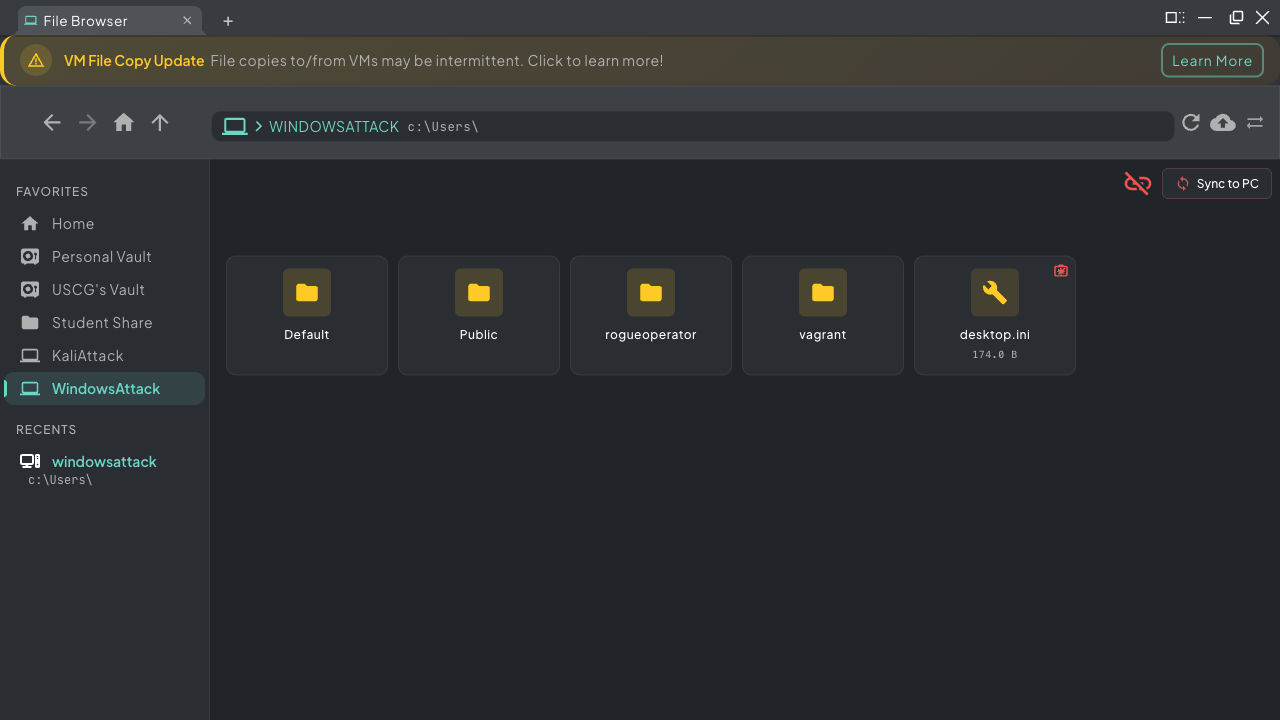 File Browser drilled into a VM’s filesystem — copy files in or out exactly like a local file manager.
From there you can copy in any direction:
- Local machine → VM — upload files straight from your computer into any VM
- Local machine → Vault — stash files into your personal or team vault
- Vault → VM — push stored tools or payloads into any scenario VM
- VM → Vault — pull artifacts, loot, or logs out of a VM into persistent storage
- VM → Local machine — download files from any VM directly to your computer
Uploading to a VM
Section titled “Uploading to a VM”Open the target VM in the File Browser, navigate to the destination folder, and drag files from your local machine into the panel — or use the upload button to browse. Files land exactly where you drop them. A progress indicator tracks the transfer.
Downloading from a VM
Section titled “Downloading from a VM”Select the VM from the File Browser sidebar, browse to the file you want, and click Download. The file transfers to your local machine via the browser download. Downloads work on single files only — to pull down a directory, zip it inside the VM first and download the archive.
- For large transfers, zip files before uploading to keep things fast and atomic
- Multi-gig uploads and downloads may take some time — the transfer will complete in the background
- VMs do not need network connectivity for file transfers — the Rogue Arena agent handles everything regardless of the machine’s network isolation
- Use your Personal Vault to carry tools between scenarios without re-uploading
- The Team Vault is ideal for sharing implants or wordlists across a red team
- The File Browser shows all VMs in your scenario — you can pull from any machine, not just the ones in the dock