

Permissions and Cloning
Beyond changelog + visibility, the More menu on the scenario header gives you four collaboration tools: edit scenario info, clone, manage sharing, and share to social media.
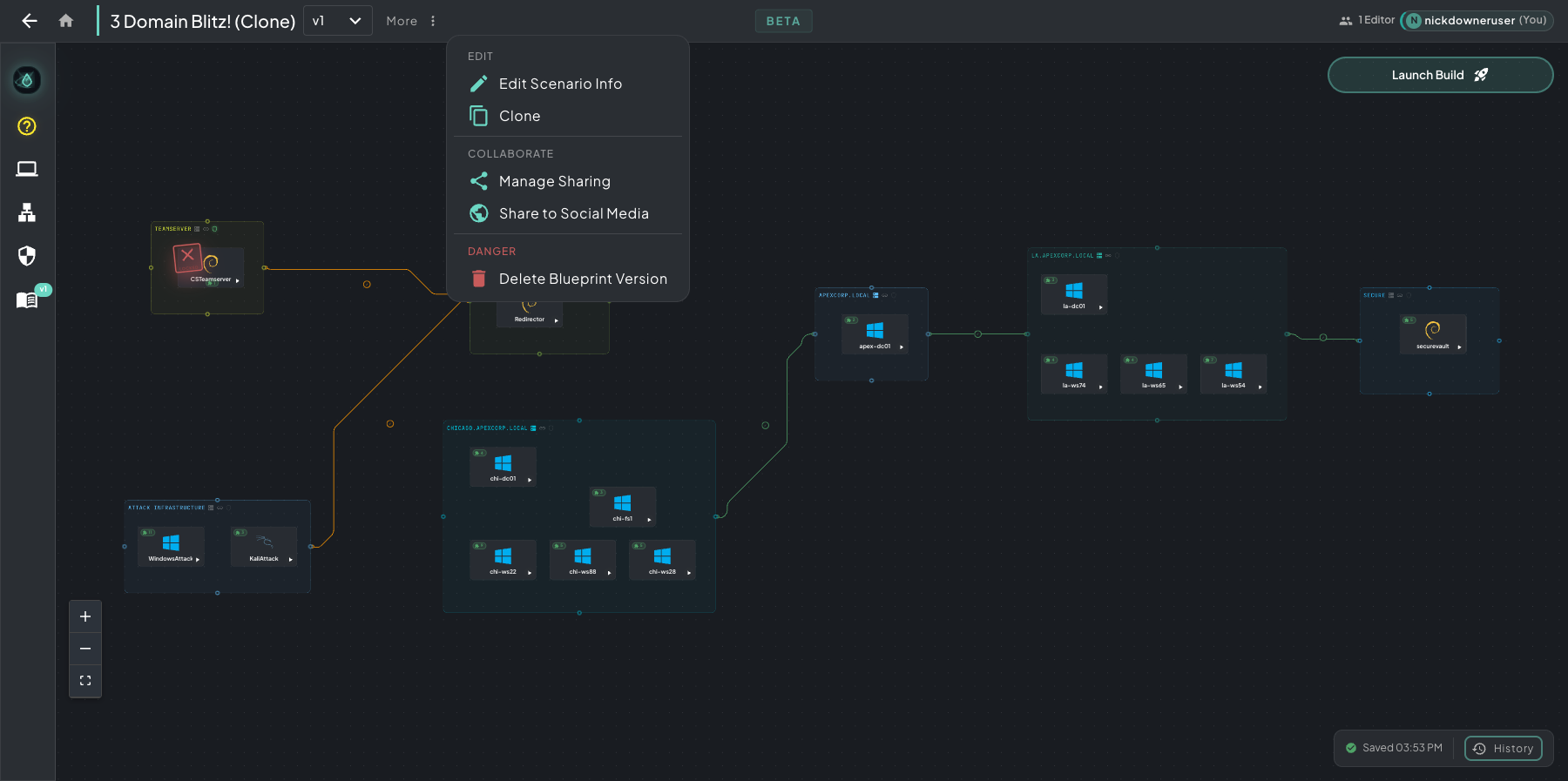 Click More in the scenario header to open the menu — Edit, Collaborate, and Danger groups, each with their own actions.
Manage Sharing
Section titled “Manage Sharing”More → Manage Sharing opens the environment-wide permissions panel. This is where you grant other users access, edit, or deploy rights on your scenario.
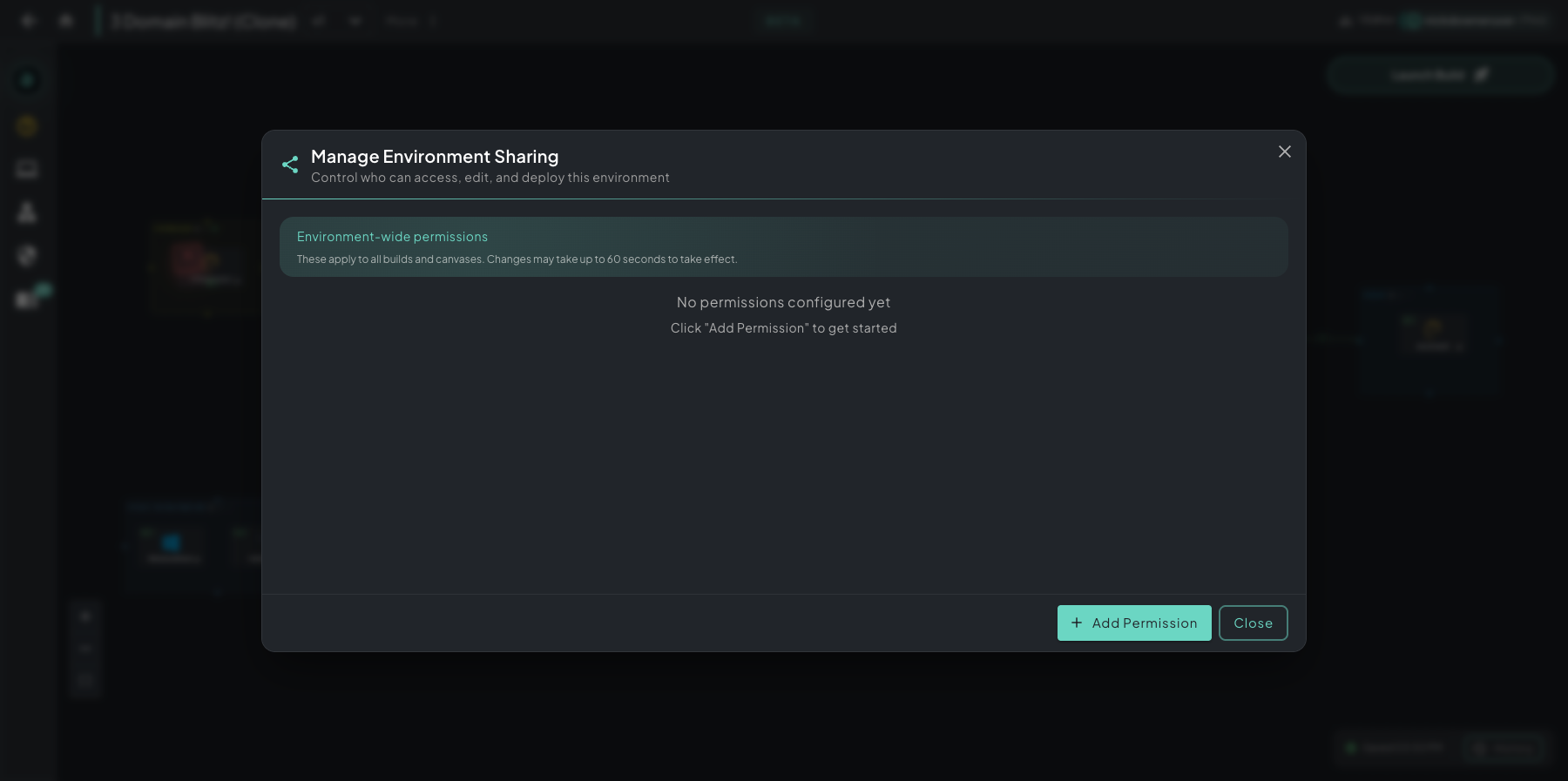 Manage Environment Sharing — control who can access, edit, and deploy. Environment-wide permissions apply to all builds and canvases.
Permission targets
Section titled “Permission targets”When you click + Add Permission, you can grant access to any of these targets:
- Specific user — a single Rogue Arena account by username or email
- Team — your full team (everyone with the team role)
- Distribution Group (DG) — smaller, org-admin-defined groups that cut across team boundaries. DGs are great for “senior operators only,” “instructors-in-training,” “red-team leads,” etc. — anywhere you want a permission to apply to a curated subset of users rather than the whole team.
- Community — public sharing to the broader Rogue Arena community (requires the Trusted Builder endorsement)
The Add Permission wizard
Section titled “The Add Permission wizard”Click + Add Permission to walk through a four-step flow:
- Select Permission Type — pick the target (user / team / DG / community)
- Select Resource — which specific user, team, DG, or community channel
- Select Access Level — view / edit / deploy
- Review — confirm and save
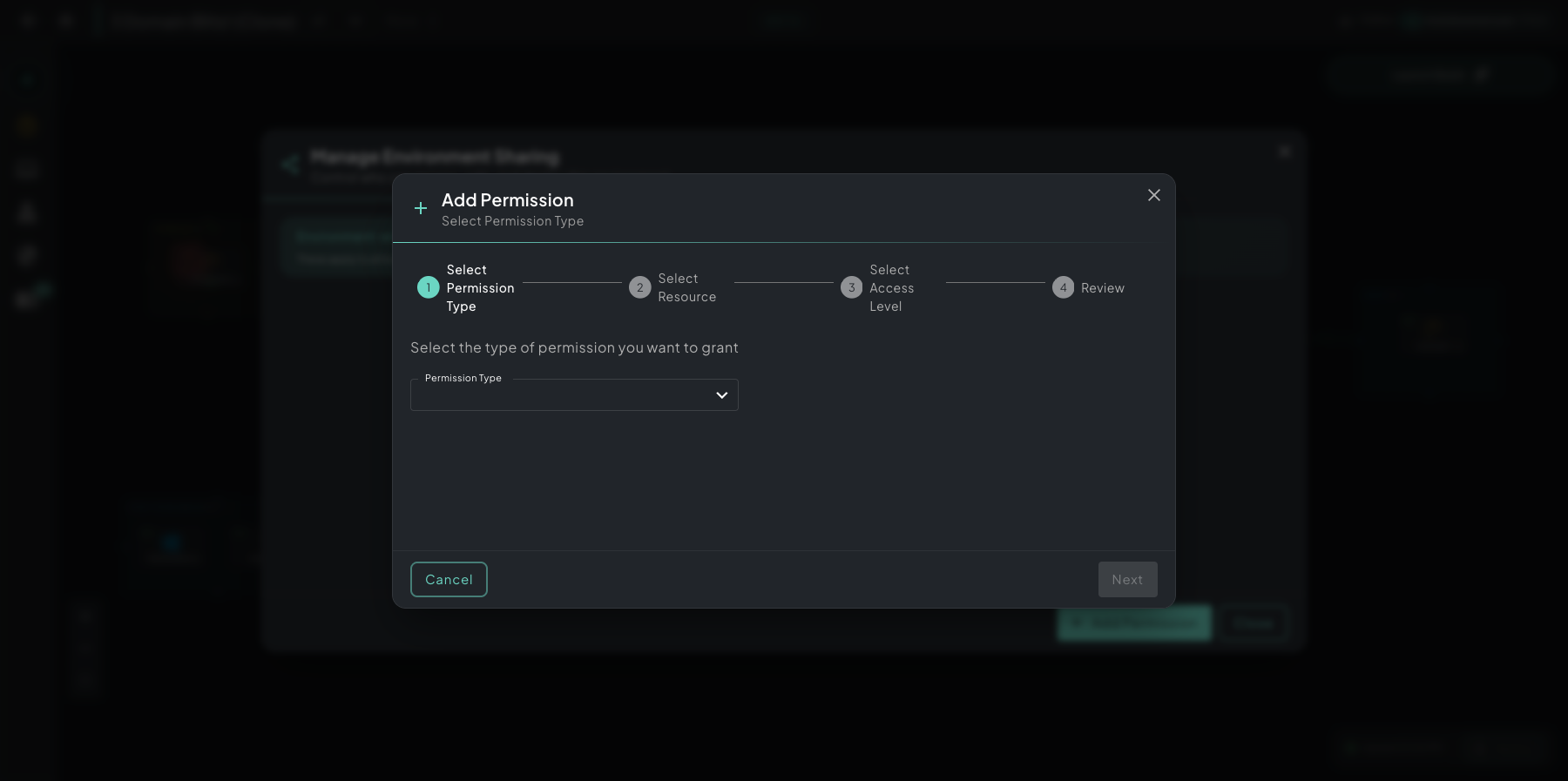 Add Permission wizard — four guided steps from picking a target to reviewing and saving.
Changes take up to ~60 seconds to propagate.
More → Clone lets you duplicate a scenario in one of two ways.
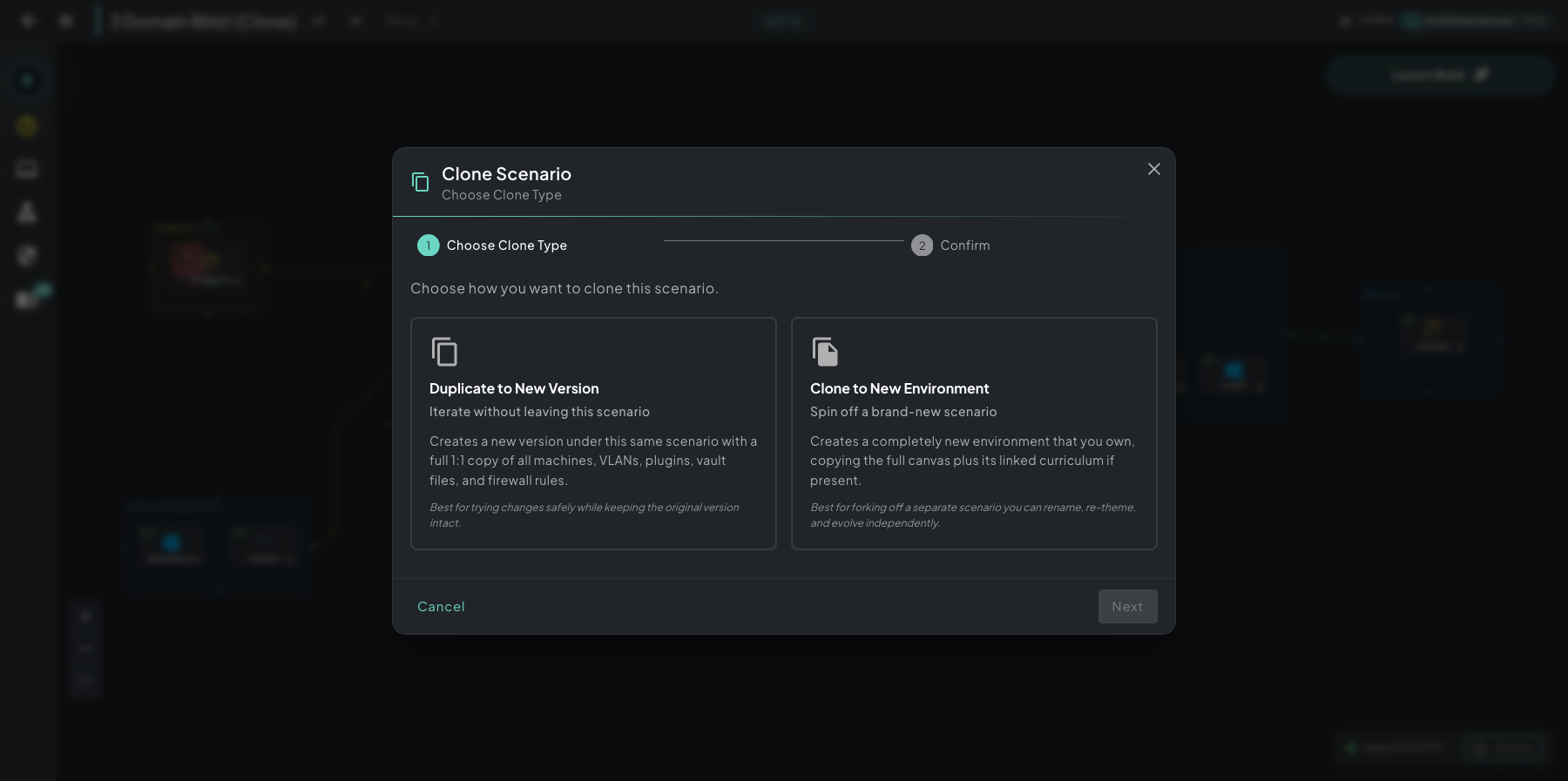 Clone Scenario — pick the right kind of duplication based on whether you’re iterating or forking.
- Duplicate to New Version — Iterate on this scenario safely. Creates a new version under the same scenario with a full 1:1 copy of every machine, VLAN, plugin, vault file, and firewall rule. Best when you want to try changes without disturbing the original version that students are already deploying.
- Clone to New Environment — Fork off a brand-new scenario you own. Copies the full canvas plus the linked curriculum (if present) into a new environment you can rename, re-theme, and evolve independently. Best for spinning up a sister scenario or basing a new course on an existing one.
Share to Social Media
Section titled “Share to Social Media”More → Share to Social Media lets you share a scenario publicly in one of two flavors.
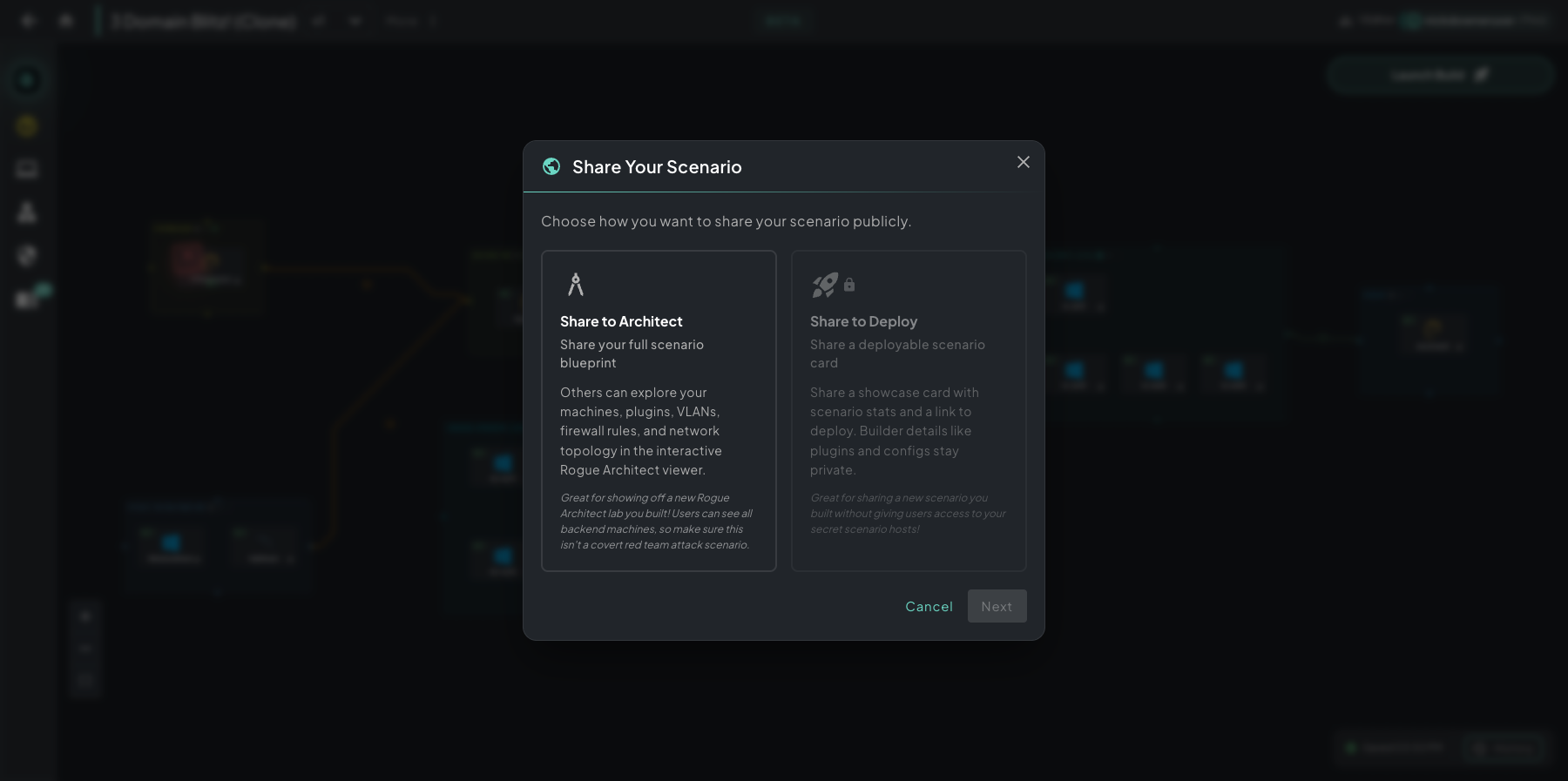 Share Your Scenario — pick whether you want to show off your build or share a deployable card.
- Share to Architect — Share the full scenario blueprint. Anyone with the link can explore your machines, plugins, VLANs, firewall rules, and full network topology in the interactive Rogue Architect viewer. Great for showing off a new build. Caution: users see backend infrastructure, so don’t use this for covert red-team scenarios.
- Share to Deploy — Share a deployable showcase card. Recipients see scenario stats and a deploy link, but plugin internals and configs stay private. Great for promoting a scenario without exposing its inner workings.
Edit Scenario Info
Section titled “Edit Scenario Info”More → Edit Scenario Info opens the metadata editor — change the scenario name, description, difficulty, tags, and cover image. Use this whenever you re-theme or rebrand a scenario after a Clone to New Environment.