

Publishing and Sharing
Plugin Dev saves your work to one canonical plugin. While that plugin is unpublished, its owner can edit it and teammates can edit it when Edit is set to My Team. Publishing makes the same plugin discoverable and read-only.
Publishing, sharing, ownership, cloning, and deletion live behind the ⋮ actions menu next to the plugin name.
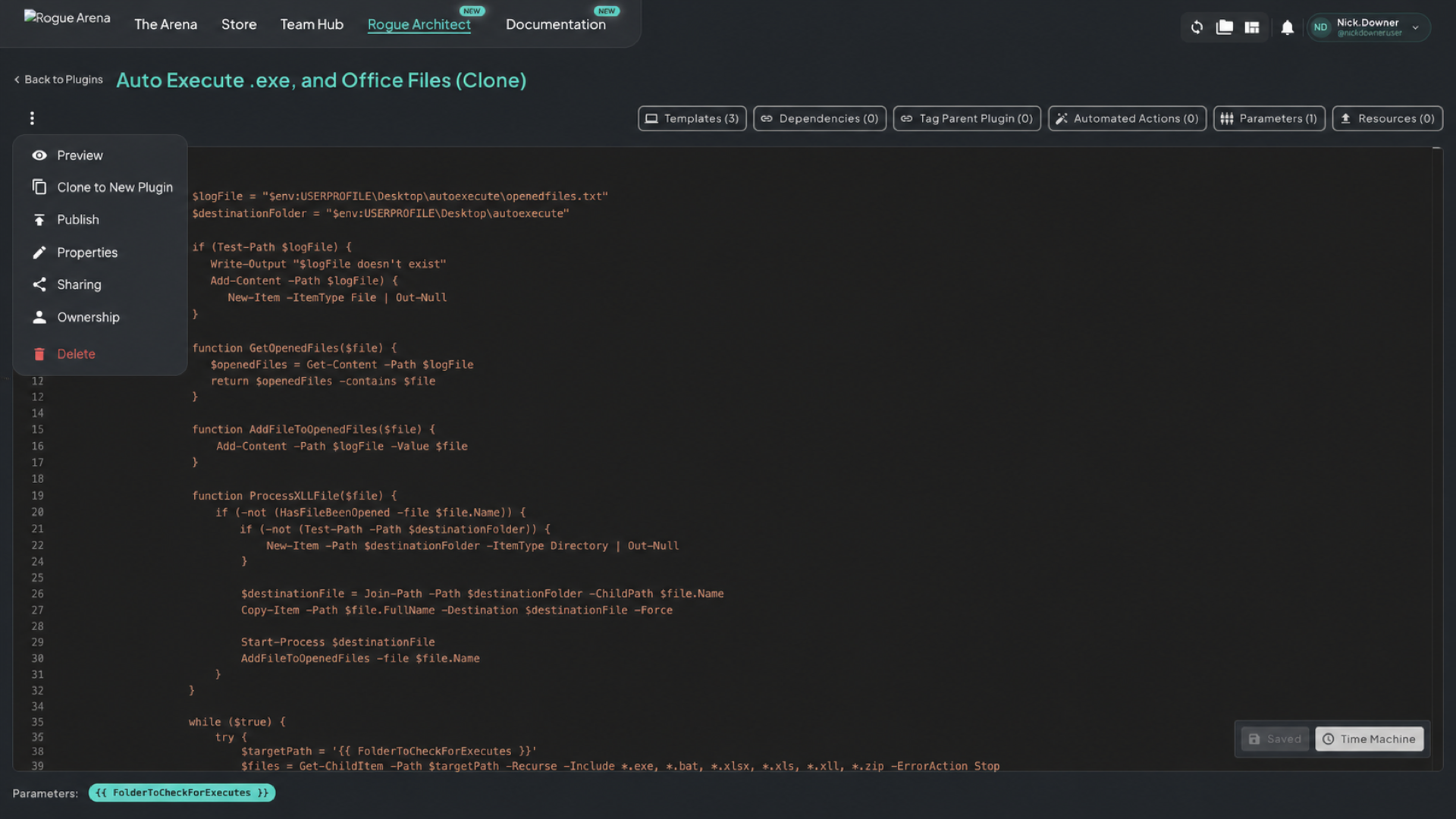 Plugin actions — one menu for previewing, cloning, publishing, properties, access, ownership, and deletion.
Publish
Section titled “Publish”Click Publish when the plugin is ready for other users to discover and apply.
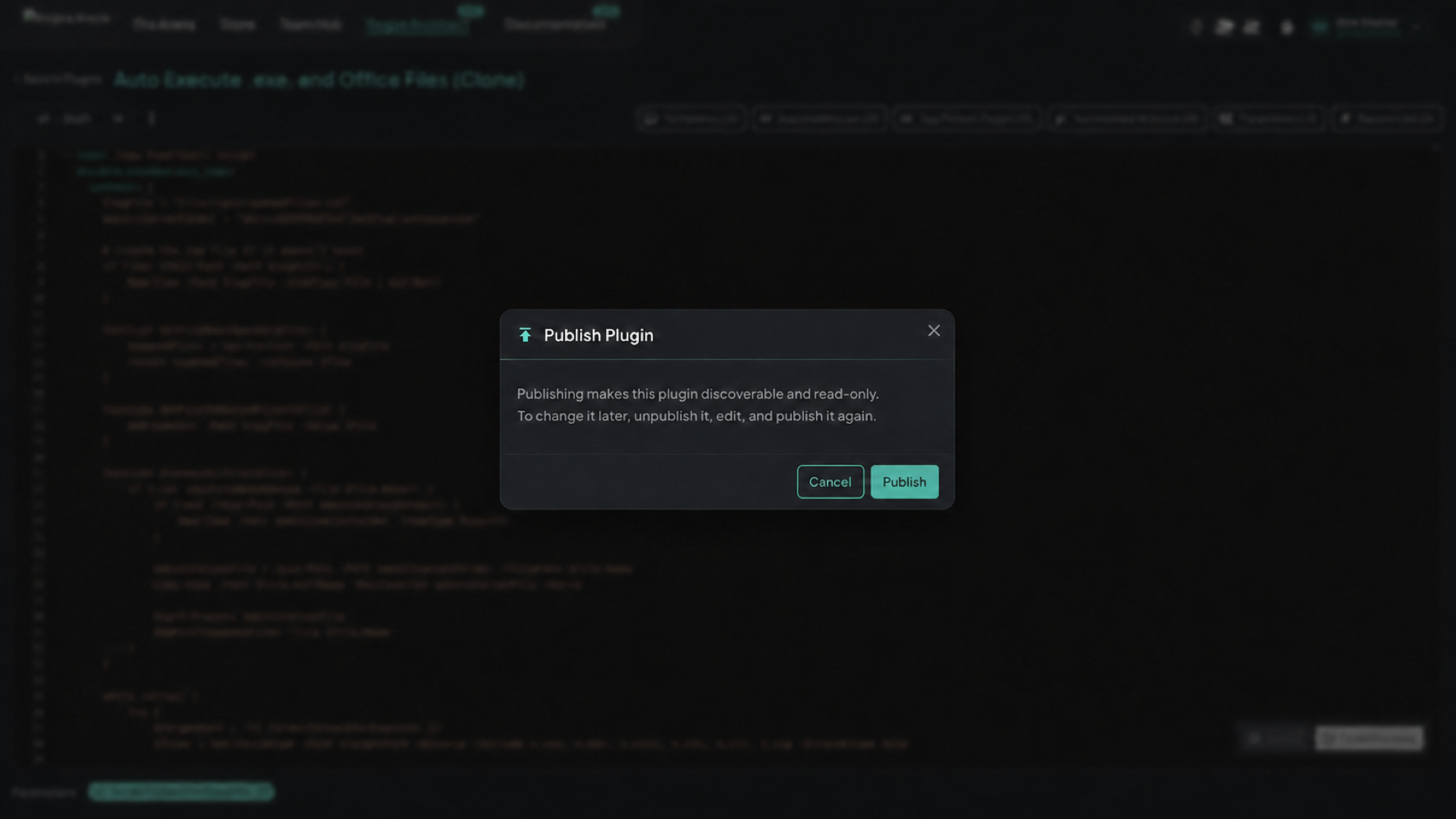 Publish Plugin — publishing does not create another copy or ask for a changelog.
A published plugin is read-only. To change it, choose Unpublish, make your edits, test them, and publish it again. There is no version selector or in-place upgrade flow.
If a change should not affect existing references to this plugin, use Clone to New Plugin instead. That creates a new unpublished plugin with the current definition and Vault files, plus a fresh YAML history containing the current source as its first revision.
Sharing
Section titled “Sharing”Click Sharing from the actions menu to open the sharing dialog.
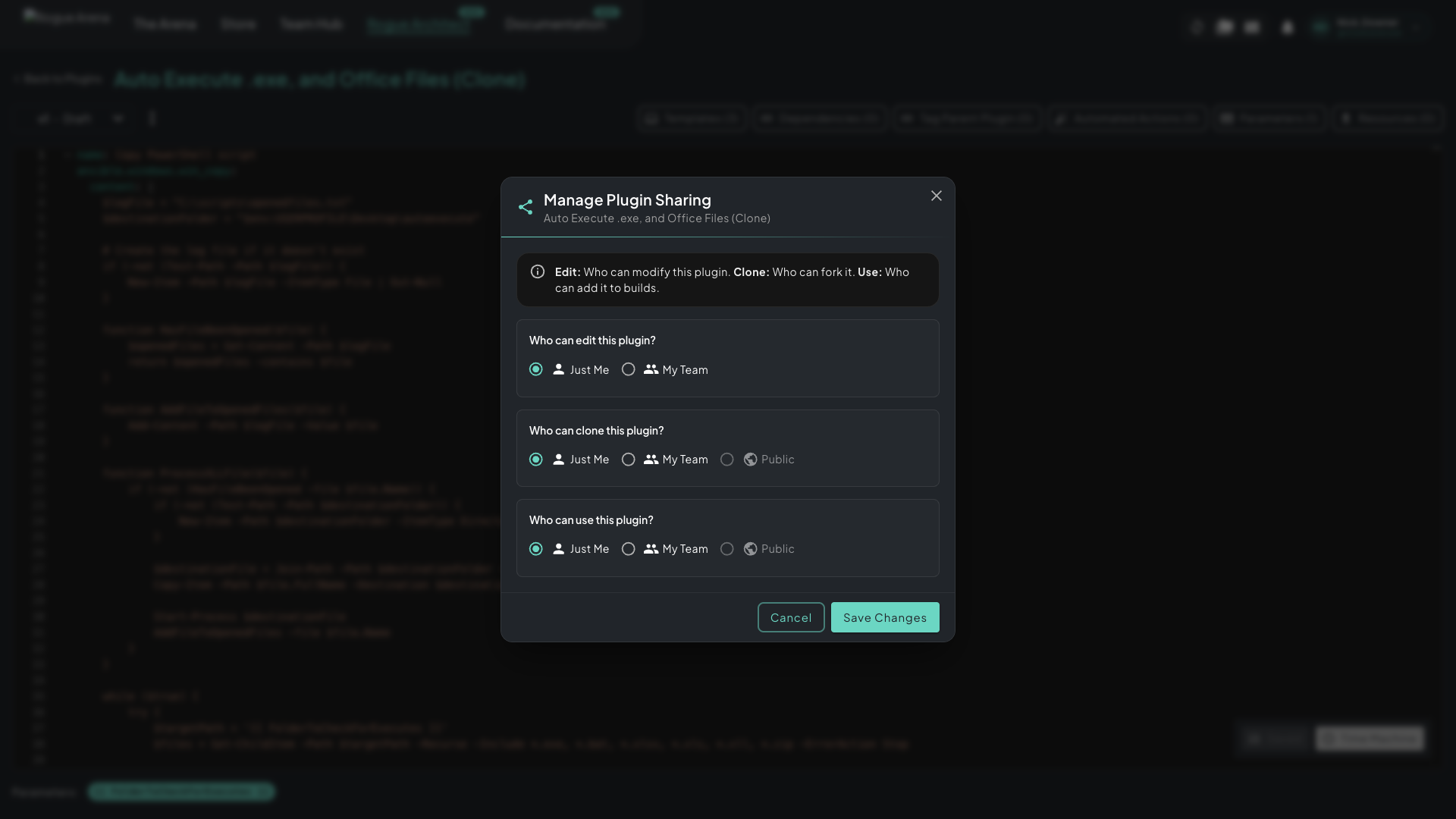 Manage Plugin Sharing — edit, clone, and use are independent permission scopes.
The scopes behave as follows:
- Edit — the owner can edit an unpublished plugin. Teammates can edit it only when this permission is My Team.
- Clone — controls who can create an independent plugin from this one.
- Use — controls who can discover and newly apply the published plugin.
Just Me, My Team, and Public broaden each permission independently. Team-use-only and public users cannot discover or newly apply an unpublished plugin.
A common pattern is Edit = Just Me, Clone = My Team, and Use = Public.
Other Actions
Section titled “Other Actions”The same menu also exposes:
- Preview — see how the plugin appears in the browser and on a canvas.
- Clone to New Plugin — create an independent unpublished plugin for breaking changes.
- Properties — edit the plugin’s name, description, category, and icon.
- Ownership — transfer ownership when permitted.
- Delete — permanently delete the plugin.
Existing Canvases
Section titled “Existing Canvases”Unpublishing removes the plugin from discovery and prevents new applications outside its unpublished-edit access rules. It does not sever existing Canvas references. Those canvases can still build against the current draft.
Saving an unpublished plugin marks every referencing Canvas fragment dirty. Its next build or redeploy uses the current plugin content; deployments that are already running remain unchanged. Publish again when the updated plugin is ready for discovery and new use.