

Voucher Management
The Voucher Management tab lets organization managers distribute and track entitlements across their team. Vouchers are created by Rogue Labs staff and allocated to your organization’s entitlement pool.
Required role: Org Manager
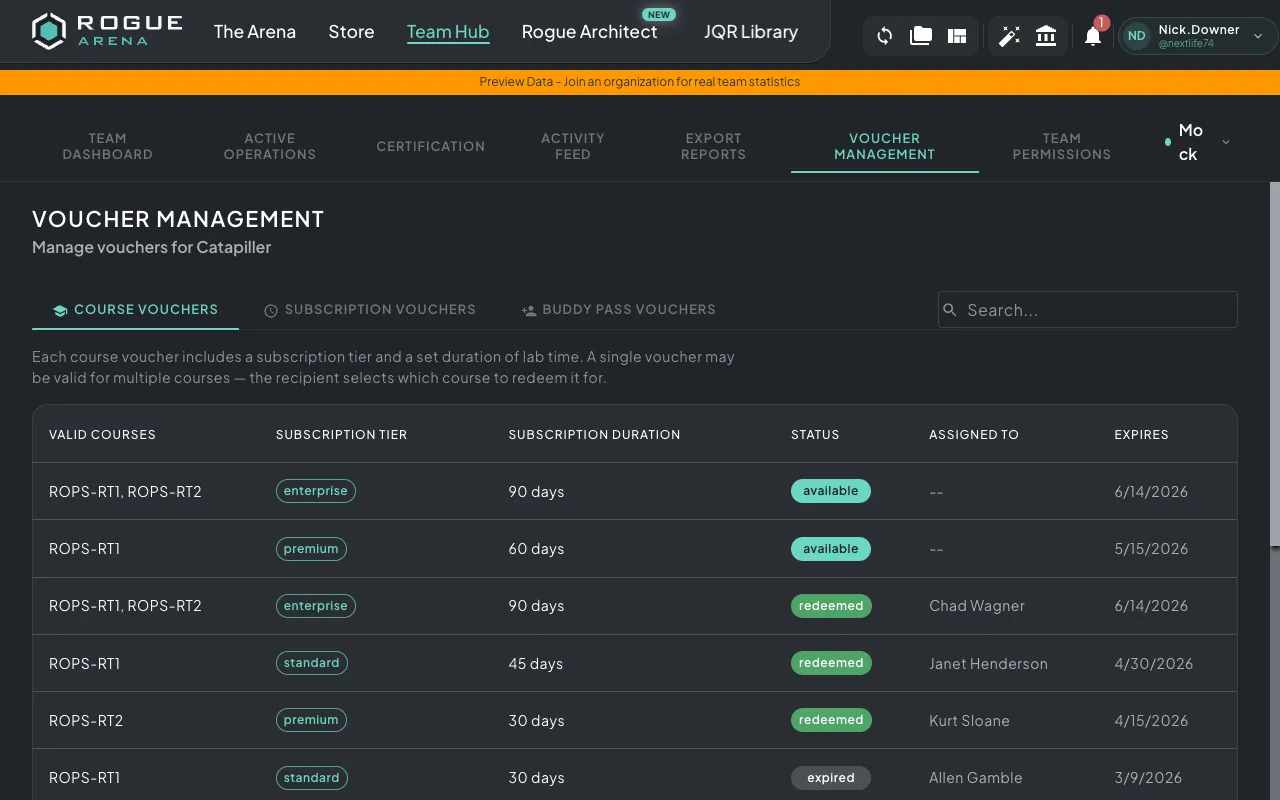
Voucher Types
Section titled “Voucher Types”Your organization’s entitlement pool can contain three types of vouchers:
Course Vouchers
Section titled “Course Vouchers”Course vouchers grant a team member access to a specific course with a set subscription tier and duration.
What you see:
- Available courses the voucher is valid for
- Subscription tier (Enterprise, Ultimate, Premium, Standard, etc.)
- Duration in days
- Expiration date (if set)
- Assignment status
To assign a course voucher:
- Find an available (unassigned) voucher in the list
- Click to assign it
- Select the team member to assign it to
- Choose which course to enroll them in (from the voucher’s valid courses)
- Confirm the assignment
Once assigned, the team member is automatically enrolled in the course and their subscription tier and duration are updated.
Subscription (RA Time) Vouchers
Section titled “Subscription (RA Time) Vouchers”Subscription vouchers add time and a subscription tier to a team member’s account without enrolling them in a specific course. This is useful for extending access or upgrading tiers.
What you see:
- Subscription tier
- Duration in days
- Expiration date (if set)
- Assignment status
To assign a subscription voucher:
- Find an available voucher
- Click to assign it
- Select the team member
- Confirm the assignment
The team member’s subscription tier and expiration date are updated immediately.
Buddy Passes
Section titled “Buddy Passes”Buddy passes let you invite new users to the platform. Instead of assigning to an existing team member, you send an invitation to an email address.
What you see:
- Invitee email (if already sent)
- Duration in days
- Status (Available, Sent, Accepted, Expired)
To send a buddy pass:
- Find an available buddy pass
- Click to send it
- Enter the invitee’s email address
- Confirm
The invitee will receive an email to create their account. If they already have an account, the pass is applied immediately.
Note: The invitee’s email domain must match your organization’s email domain.
Voucher Statuses
Section titled “Voucher Statuses”| Status | Course Vouchers | RA Time Vouchers | Buddy Passes |
|---|---|---|---|
| Available | Ready to assign | Ready to assign | Ready to send |
| Assigned | Assigned to user | — | — |
| Redeemed | User enrolled in course | — | — |
| Applied | — | Time added to user | — |
| Sent | — | — | Email invitation sent |
| Accepted | — | — | Invitee created account |
| Expired | Past expiration date | Past expiration date | Past expiration date |
| Revoked | — | — | Pass revoked by admin |